
IPTV buffering is the most common complaint in Canadian streaming households, and it is also the most misdiagnosed. A stream stalls, the spinner appears, and the instinct is to blame the provider. In practice, most IPTV buffering starts somewhere between the server and the screen: a congested Wi-Fi band, a streaming stick that ran out of memory weeks ago, or an evening squeeze on your local node.
This guide works through nine fixes in the order a technician would actually try them — cheapest and most likely first. Most Canadian homes solve it at step two or three. Work through them in order rather than changing five things at once, because if you change everything simultaneously you will never know which one mattered.
What IPTV buffering actually is
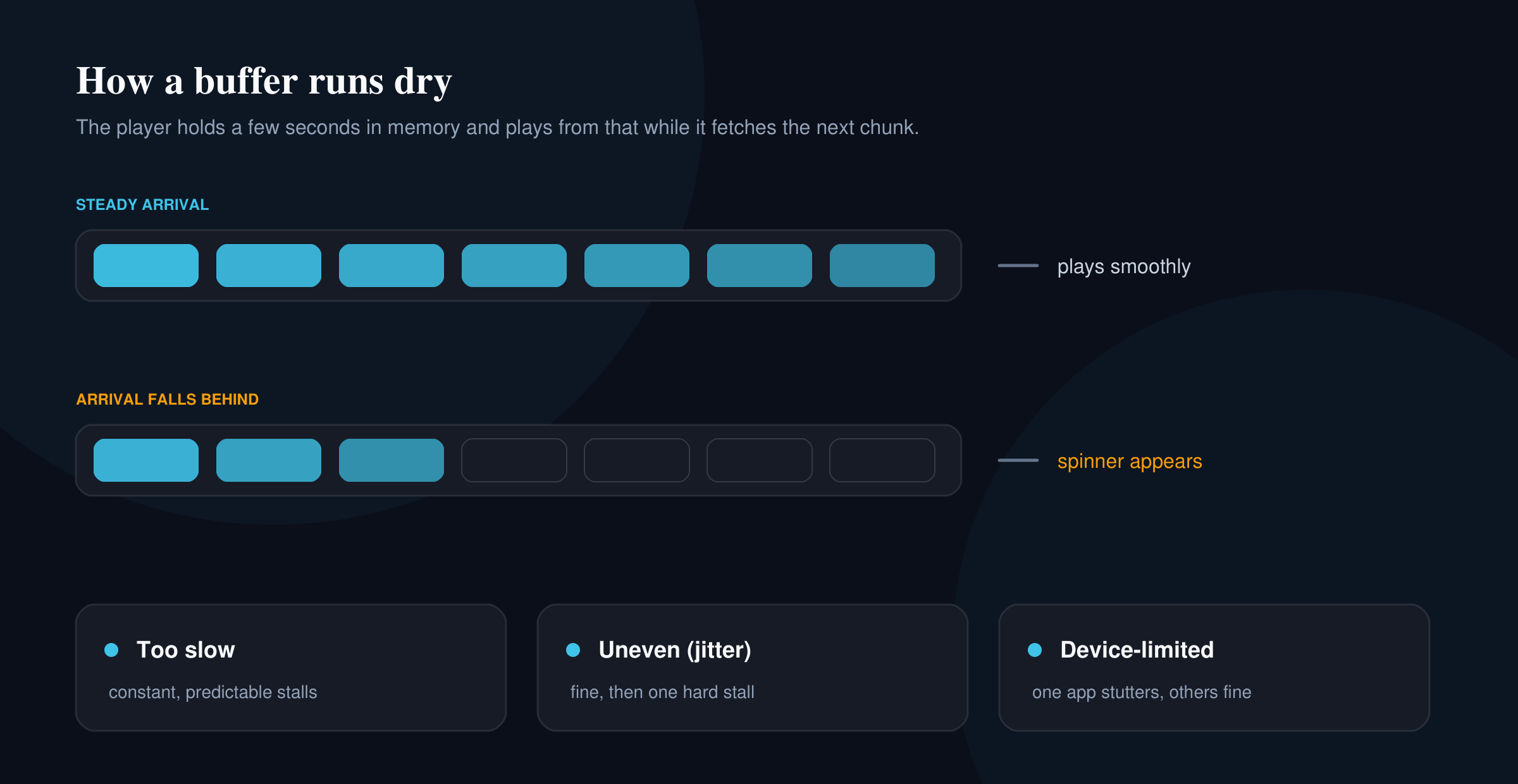
A player does not download a whole programme before showing it. It keeps a few seconds in memory — the buffer — and plays from that while fetching the next chunk. Buffering is what you see when the buffer empties before the next chunk lands.
That only happens for three reasons: the data arrives too slowly, the data arrives unevenly, or the device is too busy to process it. Almost every fix below targets one of those three. Knowing which one you have saves hours, because the fixes for slow and the fixes for uneven are completely different.
- Too slow — buffering is constant and predictable, and lower quality settings help immediately.
- Uneven (jitter) — playback is fine for ten minutes, then stalls hard for a few seconds. Speed tests look perfect.
- Device-limited — one app stutters while others are fine, and a reboot helps for a while.
Why IPTV buffering is worse in Canadian homes
Two things make this a particularly Canadian problem.
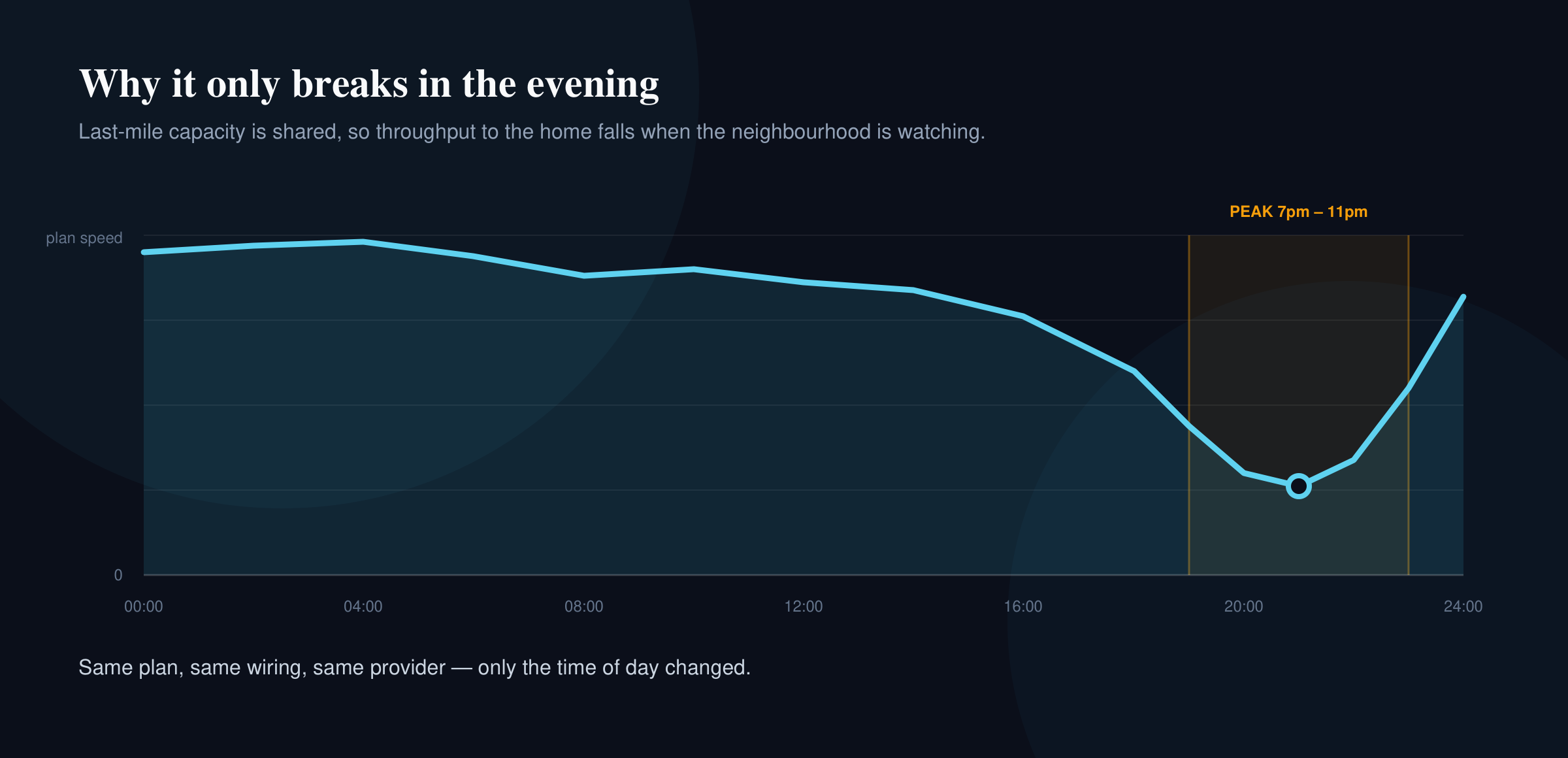
The first is evening congestion. Canadian last-mile networks are shared, and cable nodes in dense suburbs are shared by a lot of households. Between roughly 7pm and 11pm local time, the throughput you actually get can fall well below what you pay for, even though nothing is wrong with your line. The CRTC set a universal service objective of 50 Mbps down and 10 Mbps up for Canadian households, but that target describes the speed available to the home, not the throughput available to every device in it at 8pm on a Sunday.
The second is housing. Condo towers in Toronto, Vancouver and Montreal stack dozens of routers within range of each other, all competing for the same handful of 2.4 GHz channels. In a detached home in a small town this barely matters. On the fourteenth floor of a downtown building it is frequently the entire problem.
Neither of these is fixed by changing provider, which is why people who switch services often find the same IPTV buffering follows them.
Find out where the problem is before changing anything
Sixty seconds of diagnosis saves an evening of guessing. Run these three checks in order.
- Does it buffer on one channel or all of them? One channel points at that specific stream. All channels points at your network or device.
- Does it buffer on one device or all of them? Try the same channel on a phone over mobile data, with Wi-Fi switched off. If the phone is clean on cellular, your home network is the suspect — not the service.
- Does it buffer at a particular time? If it is flawless at 2pm and unwatchable at 9pm, you have congestion, and fixes 7 and 8 matter more than the rest.
Write down those three answers. They determine which of the following actually applies to you.
Nine fixes for IPTV buffering
1. Test the speed at the TV, not at the router
A speed test on a laptop beside the router tells you nothing about the box behind the television. Run the test on the streaming device itself, in the room where it lives. Fast.com is the most useful one here because it measures sustained throughput to a streaming CDN rather than a burst to a nearby test server, which is much closer to what video actually needs.
As a rule of thumb per simultaneous stream: around 5 Mbps sustained for SD and lower-bitrate HD, 10–15 Mbps for full HD, and 25 Mbps or more for 4K. Sustained is the operative word. A connection that peaks at 200 Mbps and dips to 3 Mbps every thirty seconds will buffer, while a rock-steady 20 Mbps will not.
2. Put the device on Ethernet
This is the single highest-yield fix, and the one most people skip because it is inconvenient. A wired connection removes interference, band congestion and distance from the equation in one step.
If you cannot run a cable, powerline adapters or a MoCA adapter over existing coax are both far more stable than marginal Wi-Fi. Most Android boxes, an Nvidia Shield and a Formuler take Ethernet directly. A Fire TV Stick needs an official Ethernet adapter, which is inexpensive and, in a congested building, transforms it. Our Firestick setup guide covers where that adapter goes in the boot order.
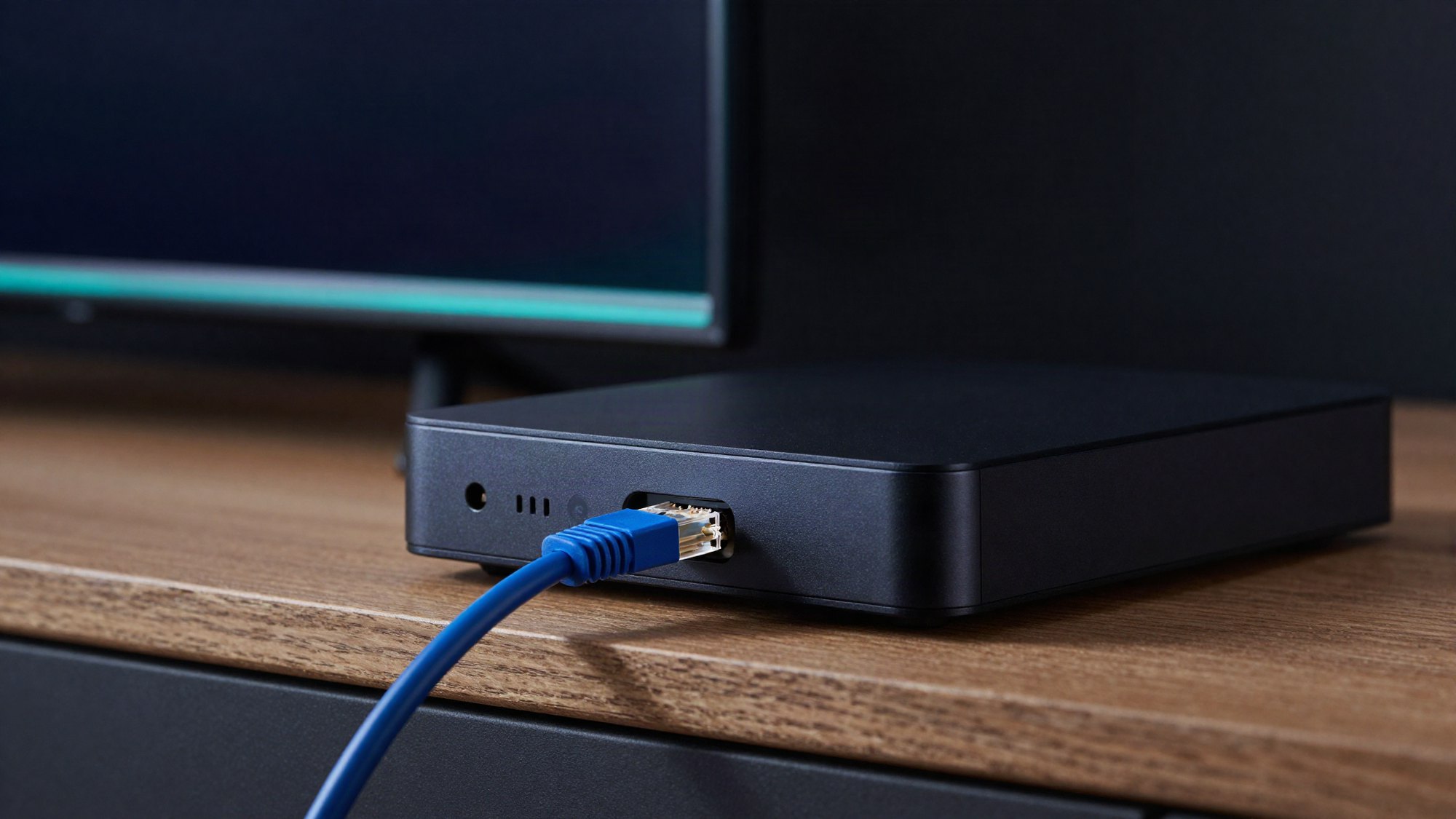
If Ethernet fixes it completely, you are done, and you have learned the problem was never the service.
3. Move to 5 GHz and choose a clean channel
If wiring is genuinely impossible, get onto the 5 GHz band. It is shorter-range but dramatically less crowded than 2.4 GHz, which it shares with microwaves, baby monitors, Bluetooth and every neighbour you have.
Many routers publish both bands under one name and let the device choose, and devices routinely choose badly — clinging to a weak 2.4 GHz signal because it reaches further. Split the bands into separate network names and join the 5 GHz one explicitly. Wi-Fi channel use in Canada is governed by ISED spectrum rules, and most modern routers will scan and pick a quieter channel if you ask them to in the admin panel.
4. Free up memory on the device
Streaming sticks are memory-constrained, and IPTV players are memory-hungry because they hold that buffer in RAM. A Fire TV Stick that has not been restarted since you bought it, with fourteen background apps and a full app cache, will stutter on a connection that is objectively fine.
- Clear the cache of the IPTV player app (not its data, which would erase your playlist).
- Uninstall apps you never open — on a 8 GB stick, free storage genuinely affects performance.
- Restart the device properly: unplug it at the wall for thirty seconds rather than using standby.
- Turn off auto-updating apps if the device has fewer than 2 GB of RAM.
A weekly reboot is a legitimate maintenance habit on low-powered hardware, not a workaround.
5. Increase the player’s buffer
If your connection is fast but uneven — jitter rather than low speed — a larger buffer absorbs the dips. The trade-off is that channels take slightly longer to start and to switch.
In TiviMate this sits under Settings → Playback as the buffer size, and moving it up one or two steps is usually enough. IPTV Smarters exposes something similar in its player settings, and switching the decoder between hardware and software is worth testing on the same screen. Our TiviMate guide and IPTV Smarters guide show where these live in the current versions.
If a bigger buffer fixes it, the underlying issue is jitter, and fixes 2, 3 and 7 will address the cause rather than the symptom.
6. Match stream quality to the screen
Running a 4K stream to a 1080p television costs bandwidth and buys nothing, because the panel cannot show the extra detail. If a channel offers multiple qualities, pick the one that matches the screen.
This matters most in homes running several streams at once. Three 4K streams need more sustained throughput than most Canadian residential connections deliver during peak hours, and the result is all three buffering rather than one failing cleanly.
7. Work around evening peak-hour congestion
If your diagnosis showed clean playback at 2pm and constant IPTV buffering at 9pm, the bottleneck is shared capacity, and no player setting fully fixes that.
What genuinely helps: moving to Ethernet so you are not also fighting Wi-Fi contention, reducing simultaneous streams during those hours, and checking whether other devices are doing heavy work in the background. A single game console downloading a 90 GB update will flatten an entire household’s video. Quality-of-service rules in the router, prioritising the streaming device, are worth setting up if your router supports them.
If peak-hour throughput is consistently a fraction of your plan speed, that is a conversation with your ISP — a documented pattern of evening measurements is far more persuasive than a phone call describing it.
8. Test a VPN properly, because it cuts both ways
A VPN is the most over-recommended and least understood fix in this category, so be precise about it.
A VPN can help when an ISP is shaping or throttling particular traffic, because the ISP can no longer classify what it is carrying. A VPN will hurt when it adds distance and processing: your traffic now travels to the VPN server before reaching you, which adds latency and can reduce throughput substantially on a slow device.
Test it honestly. Watch a channel for ten minutes with the VPN off, then ten minutes with it on and connected to the nearest Canadian city. If buffering improves, throttling was plausibly the issue. If it worsens or stays the same, turn it off — you are adding a bottleneck for no benefit. Note that a low-powered stick may not have the processing headroom to encrypt a 4K stream at all.
9. Rule out the device itself
Some hardware simply cannot keep up. Older Fire TV Sticks, entry-level Android boxes and the generic boxes sold cheaply online often have a weak processor, minimal RAM and a poor Wi-Fi chip. They will play a 1080p stream in isolation and fall apart with a 4K stream, a VPN, or a busy home network.
If every other fix has failed and the same channel plays perfectly on a phone over mobile data, the device is the constraint. Our devices page sets out what works reliably, and the Smart TV setup guide covers built-in apps, which are convenient but frequently slower than a dedicated box.
Buffering, freezing and pixelation are different faults
These three get reported interchangeably and have different causes, so separating them narrows the search considerably.
- Buffering — playback stops cleanly, a spinner appears, and audio and video resume together. The buffer emptied. This is a throughput or jitter problem.
- Freezing — the picture locks on one frame while audio continues, or both stop without a spinner. This more often points at the decoder or the device, and switching between hardware and software decoding in the player is the first thing to try.
- Pixelation or macroblocking — the picture breaks into squares but never actually stops. That is packet loss rather than insufficient speed, and it is common on marginal Wi-Fi and on older powerline adapters.
- Audio drifting out of sync — usually a device or HDMI audio delay issue, not a network one. Most players expose an audio offset setting to correct it.
If what you actually have is pixelation, the speed tests in fix 1 will look perfectly healthy and you will waste an evening on the wrong problem. Packet loss and IPTV buffering share fixes 2 and 3 — wired connections and a clean 5 GHz band — but pixelation rarely responds to a larger buffer.
How to tell if IPTV buffering is the provider’s fault
Sometimes it genuinely is, and it is worth being able to tell rather than guess. The signature of a server-side problem is specific:
- One channel or one group of channels buffers while everything else is perfect.
- It happens on every device in the house, including a phone on mobile data with Wi-Fi off.
- It starts abruptly, without any change on your side.
- Speed tests from the streaming device are healthy, and other video services play cleanly at the same moment.
If that pattern matches, stop troubleshooting your network and report it, with the channel name and the time it happened. Those two details let a provider check the right stream against the right window instead of guessing. Our support page explains what to send.
What a provider can and cannot control
Being straightforward about this is more useful than a guarantee. A provider controls its own servers, the capacity it buys, and how many sources it keeps for a given channel. It does not control your Wi-Fi, your device, your ISP’s evening congestion, or the distance from your router to your television.
That is why no service can honestly promise zero buffering, and why any that does is telling you something it cannot deliver. What is reasonable to expect is stable delivery to your connection, and a support process that investigates a specific channel at a specific time rather than telling every customer to reboot their router.
If you are still evaluating services, testing during your own peak hours matters more than any feature list. A short trial watched at 9pm on a weeknight tells you more than a week of watching at noon.
IPTV buffering FAQ
Why does IPTV buffer only in the evening?
Because last-mile capacity is shared. Between about 7pm and 11pm, more households in your area are streaming simultaneously, so the throughput reaching your home drops even though your plan has not changed. Ethernet, fewer simultaneous streams and router QoS all reduce the impact.
Does a VPN stop IPTV buffering?
Only when the cause is ISP throttling. If your ISP is shaping video traffic, a VPN can help because the traffic is no longer identifiable. If the cause is Wi-Fi congestion, weak hardware or insufficient speed, a VPN makes it worse by adding latency and encryption overhead. Test it both ways for ten minutes each.
How much internet speed do I need to avoid IPTV buffering?
Roughly 5 Mbps sustained per SD stream, 10–15 Mbps for full HD and 25 Mbps or more for 4K, per simultaneous stream. Consistency matters more than the headline number: a stable 20 Mbps outperforms a connection that peaks at 200 Mbps and repeatedly dips.
Why does one channel buffer when everything else is fine?
That pattern points at that specific stream rather than your network, particularly if it persists on mobile data with Wi-Fi off. Report the channel name and the time so it can be checked against the right source.
Will a better streaming box fix buffering?
It will if the device is the bottleneck — older sticks and cheap generic boxes often are. It will not if the cause is your connection or your Wi-Fi, so work through the network fixes first. Replacing hardware to solve a congestion problem is an expensive way to change nothing.
Working through it in order
Most IPTV buffering in Canadian homes resolves in the first three steps: test the speed at the device, get onto Ethernet, and move off the 2.4 GHz band. Those three remove the causes behind the clear majority of cases.
If it survives all nine and matches the server-side signature above — one channel, every device, healthy speed tests — then it is ours to fix, and the channel name plus a timestamp is all we need to start. Diagnosing in order is what turns a frustrating evening into a fifteen-minute job.