
An IPTV EPG problem is one of the most frustrating faults a streaming setup can have, because the channels themselves play perfectly. You open the TV guide and find it empty, half-filled, or listing tonight’s shows three hours early. The good news is that IPTV EPG problems almost always come from a handful of causes, and nearly all of them can be fixed from inside the player app in a few minutes.
This guide explains what the guide data actually is, how to tell which of the four common IPTV EPG faults you have, and the eight fixes that resolve them. It also covers the problem generic guides skip: why Canada’s time zones break guide times more often than almost anywhere else.
What the IPTV EPG actually is
EPG stands for electronic programme guide. It is the listings data behind the TV guide grid: programme titles, start and end times, and descriptions for each channel.
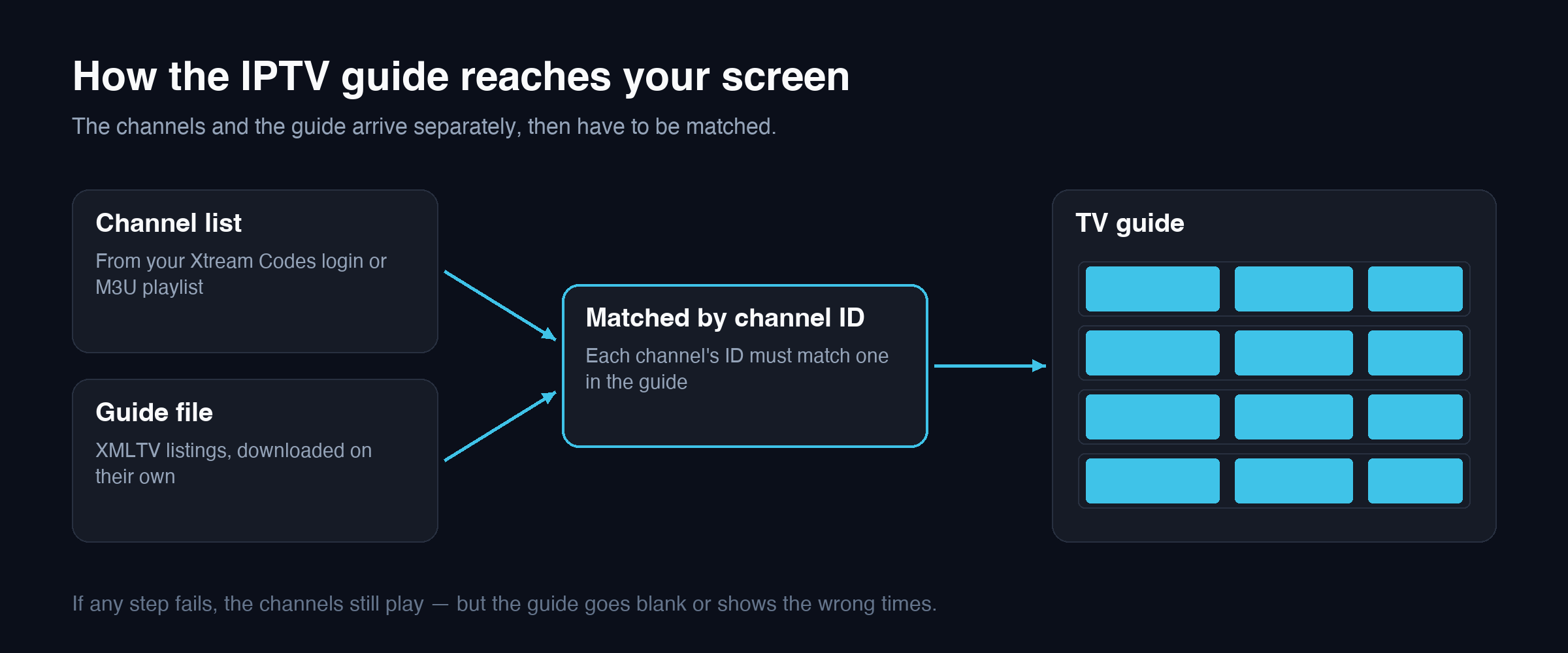
The important thing to understand is that the guide is separate from the channels. Your player downloads the channel list from one address and the guide data from another, usually as a large file in the XMLTV format. It then has to match every guide entry to the right channel using an identifier. If any of those three steps fails — the download, the storage, or the matching — the channels still play, but the guide goes blank or wrong.
That separation is why an IPTV EPG fault feels random. It is not the stream failing. It is one of three quiet background jobs failing on its own.
Work out which IPTV EPG problem you have
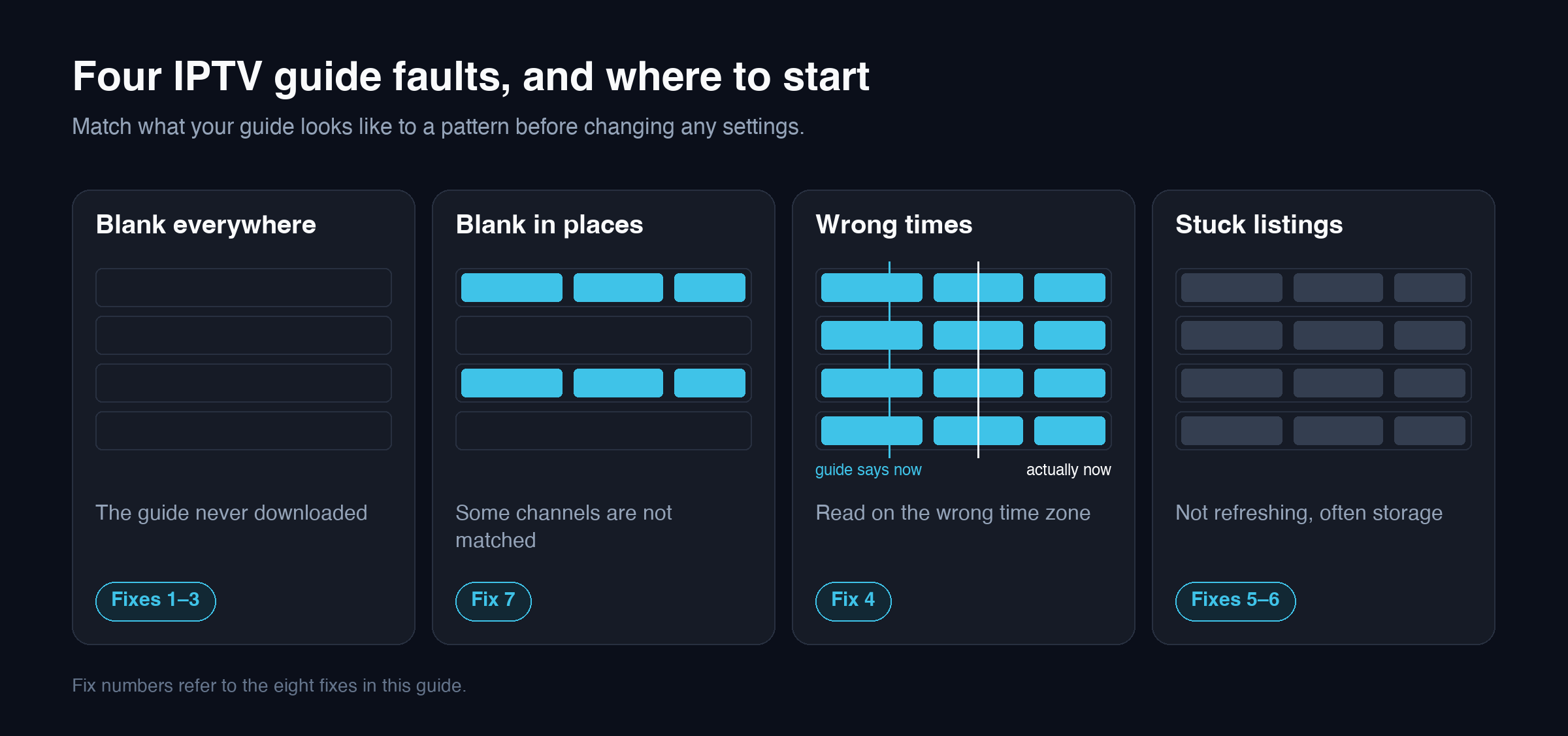
Before changing any settings, look at the IPTV EPG and match what you see to one of these four patterns. Each points at a different cause, and fixing the wrong one wastes time.
- Blank for every channel — the guide never downloaded. Usually the guide source is missing, the address is wrong, or the first download has not finished.
- Blank for some channels only — the guide downloaded, but those channels could not be matched to a listing, or the guide source simply has no data for them.
- Correct shows at the wrong times — the data is fine and is being read on the wrong time zone. This is the most common IPTV EPG fault in Canada.
- Old or stuck listings — the guide loaded once and has stopped refreshing, often because the device is out of storage.
Write down which pattern you have. Fixes 1 to 3 address a blank guide, fix 4 addresses wrong times, fixes 5 and 6 address stale data, and fixes 7 and 8 cover partial gaps and last resorts.
Eight fixes for IPTV EPG problems
1. Give the first download time to finish
A full guide file covers thousands of channels over several days, and on a streaming stick the first download and processing can take several minutes. Many people open the IPTV EPG immediately after adding a playlist, see nothing, and assume it is broken.
After adding your login or playlist, leave the player open on its home screen for five to ten minutes before judging the guide. Closing the app or putting the device to sleep during that first run often interrupts it, and the guide stays empty until the next scheduled update.
2. Refresh the guide manually
Restarting the device does not necessarily fetch new guide data. Most players keep the last copy they downloaded and only update on a schedule. Look for an option to update or refresh the EPG inside the player’s settings and run it once the channel list has fully loaded.
If the IPTV EPG fills in after a manual refresh, the source was fine and the automatic update simply had not run yet. Our TiviMate guide and IPTV Smarters guide show where the refresh option sits in each app.
3. Check that a guide source is actually set
How you connected decides whether the IPTV EPG arrives automatically. When you sign in with an Xtream Codes login — a server address, username and password — most players fetch the guide automatically as part of the same connection. When you add an M3U playlist link instead, many players need a separate EPG address entered on its own.
If you used an M3U link and the guide is blank for every channel, check whether an EPG address field exists and is filled in. If you were given one, re-enter it exactly: a single wrong character in a long address fails silently. Our Xtream Codes guide and M3U playlist guide explain both connection types.
4. Correct the guide’s time offset
If the right shows appear at the wrong times, do not change the device clock — that breaks other apps and does not fix the underlying mismatch. Instead, find the player’s guide time setting, usually named EPG time shift, time offset, or similar, and adjust it until the guide lines up with what is actually airing.
Check the offset against a live channel: open a channel, compare what is on screen with what the guide says is on now, and move the offset one hour at a time until they match. If you live in Newfoundland, you may need a half-hour adjustment, which the next section explains.
5. Free up storage on the device
Guide data is written to the device’s storage, and on an 8 GB streaming stick that space fills up faster than most people expect. When storage runs low, the player cannot save a fresh guide, so it either keeps showing stale listings or shows nothing at all.
- Uninstall apps you no longer use.
- Clear the cache of apps that store a lot of temporary data, without clearing their saved data.
- Restart the device fully by unplugging it for thirty seconds.
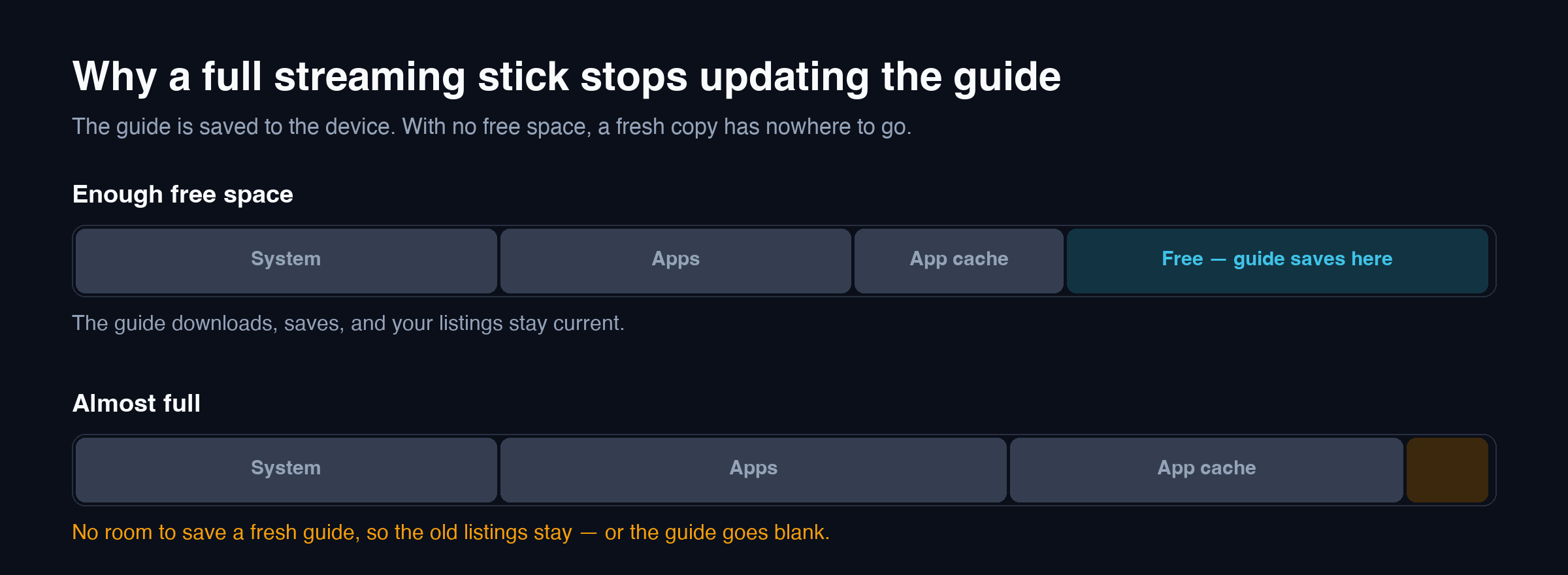
Then run a manual guide refresh. If the listings update, storage was the cause, and it will return unless you keep some space free. The same memory and storage pressure causes playback problems too, which our IPTV buffering guide covers in detail.
6. Set a sensible refresh interval
Players let you choose how often the IPTV EPG updates. Set it too rarely and listings run out after a few days; set it too often and a low-powered device spends its resources constantly rebuilding a large file. Once a day is a good balance for most households.
If your guide regularly goes blank a few days after it last worked, the interval is likely set too long or the automatic update is being cancelled because the device sleeps at the scheduled time. Choosing an update time when the device is usually on helps.
7. Match the channels that show no listings
When most channels have a guide but a few do not, the problem is matching rather than downloading. Each channel carries an identifier that has to match an entry in the guide file, and when the two do not line up, that channel’s row stays empty.
In an M3U playlist, each channel line can carry an identifier, commonly written as tvg-id, and the guide file lists its programmes under channel identifiers of its own. When a channel’s identifier is missing, or written differently from the one in the guide file, the player has nothing to match it to — even though the listings for that channel may be sitting in the file it downloaded.
Some players let you assign a guide entry to a channel by hand, which fixes the gap permanently on that device. If the guide source contains no listing for a channel at all, no setting on your side can fill it. That is worth reporting, with the exact channel names, so the source can be checked.
8. Clear the player’s data and reload
If none of the above works, a corrupted guide cache can be the cause. Clearing the player app’s data removes the stored guide so it downloads cleanly from scratch.
Treat this as a last resort: clearing an app’s data also removes your saved login or playlist, favourites and settings. Note your connection details before you start, then add them back and allow time for the first download, as in fix 1.
Set up the IPTV EPG properly on a new device
Most guide problems on a new device come from doing the right steps in the wrong order. When you add a service to a new streaming stick or TV, work through it like this:
- Add your login or playlist and wait until the channel categories have fully loaded.
- Confirm the guide source. With an Xtream Codes login it is usually automatic; with an M3U link, enter the EPG address if you were given one.
- Leave the app open until the first guide download finishes, rather than opening the guide straight away.
- Set the time offset by comparing a live channel with what the guide says is on now.
- Choose a daily update at a time the device is normally switched on.
- Keep some storage free so future updates have room to save.
Following that order avoids the single most common mistake with a new setup: judging the guide before it has had any chance to download, then changing settings that were already correct.
Why the guide matters for catch-up
The guide is more than a schedule. Many IPTV services let you watch programmes after they have aired, and players usually present that archive through the guide itself: you scroll back on a channel that supports it, pick a programme that has already finished, and it plays from the start.
That only works smoothly when the guide has listings for those past hours. With a blank IPTV EPG, the archive may still exist but becomes difficult to use, because the past time slots carry no programme names. With a shifted guide, the programme you choose can start at the wrong point, since the player jumps to the time the guide claims it began.
So if catch-up matters to your household — and in a country where live events can start mid-afternoon on the Pacific coast, it often does — getting the guide offset right is not cosmetic. It decides whether replay works at all. When you are testing a service, check catch-up on the channels you actually watch, not just whether the feature is listed.
Why the guide shows the wrong time in Canada
Canada is unusually hard on guide times, and it explains why an IPTV EPG offset that works for one household is wrong for a relative two provinces away.
The country spans six time zones, from Pacific to Newfoundland, and Newfoundland Time sits half an hour off the Atlantic zone rather than a whole hour. A player that only adjusts in whole hours can never line up a guide exactly in St. John’s.
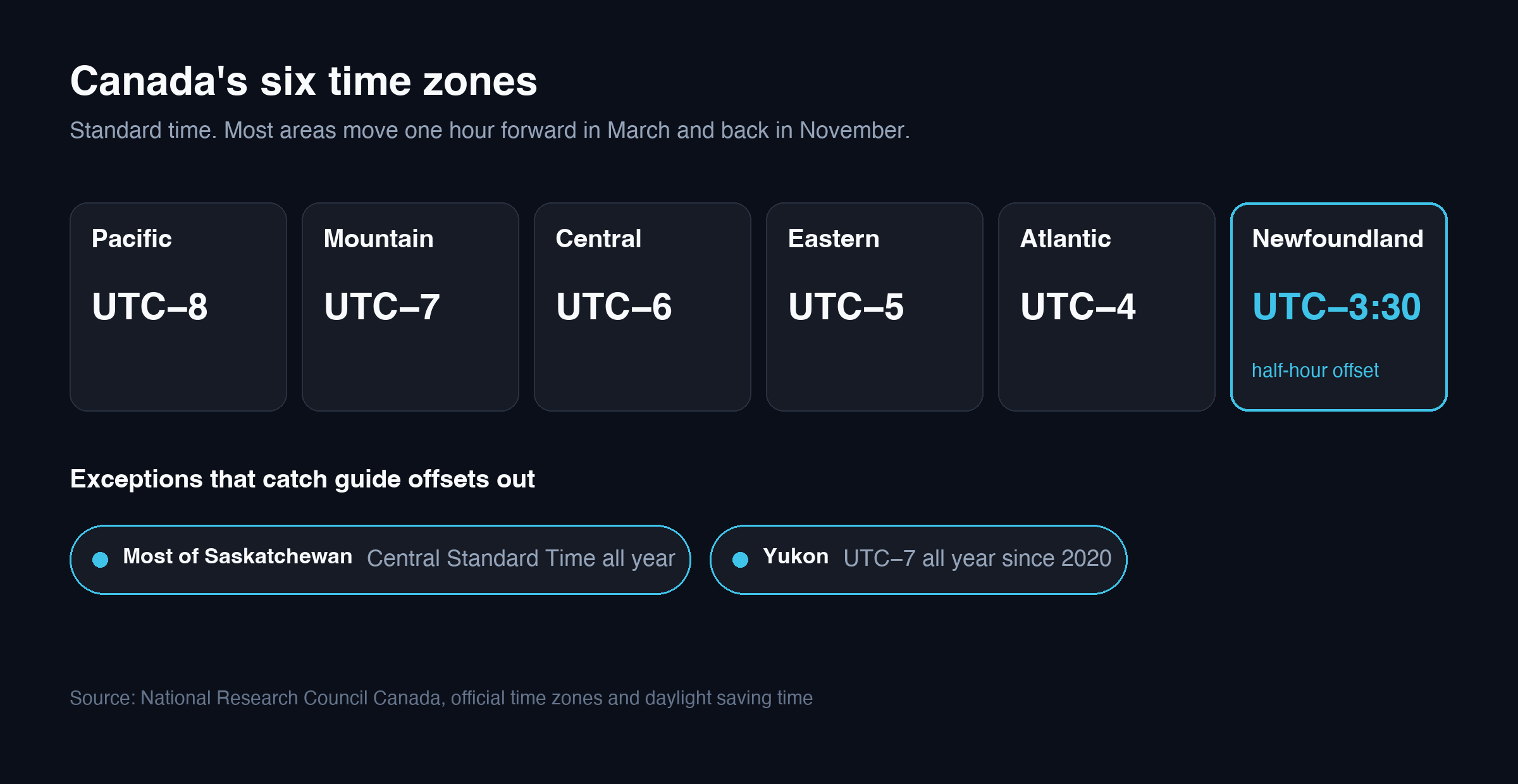
Daylight saving time adds a second layer. According to the National Research Council’s official time guidance, most of Saskatchewan stays on Central Standard Time all year, and since 2020 Yukon has used a single time all year round. The same source notes that parts of Quebec east of 63° West use Atlantic Time and western Ontario sits in the Central zone.
In practice, that means two things for your IPTV EPG:
- Recheck the offset after the clocks change in March and November. A guide that was correct in October can be an hour out a week later.
- If you live in Saskatchewan or Yukon, your local time does not move when most of the country’s does, so an offset copied from someone in Alberta or Manitoba will be wrong for half the year.
When an IPTV EPG problem is on the provider’s side
Sometimes the guide data itself is at fault, and it helps to recognise that pattern rather than keep changing settings.
- The guide is blank or wrong on every device and every player app you try.
- It stays that way after a manual refresh and with plenty of free storage.
- Specific channels have never had listings, on any device.
If that matches what you see, report it. A useful report includes:
- The exact channel names that are blank or wrong, as they appear in your channel list.
- Which pattern you see — blank everywhere, blank in places, wrong times, or stuck listings.
- Your device and player app, for example a Fire TV Stick running TiviMate.
- How you connected — an Xtream Codes login or an M3U playlist link.
- Your time zone, especially if you are in Newfoundland, Saskatchewan or Yukon.
- When you first noticed it, and whether it followed a clock change.
Those details let the fault be traced to the right part of the guide data instead of starting from general advice you have already tried. Our support page explains how to get in touch.
IPTV EPG FAQ
Why is my IPTV TV guide empty?
Usually because the guide has not downloaded yet, no guide source is set, or the device is out of storage. Leave the player open for several minutes after adding your playlist, run a manual refresh, and check that an EPG address is set if you connected with an M3U link.
Why does my IPTV guide show the wrong times?
The guide data is being read on a different time zone. Adjust the player’s EPG time shift setting rather than your device clock, checking against a live channel, and recheck it after the clocks change in March and November.
Do I need a separate EPG link?
With an Xtream Codes login, most players fetch the guide automatically. With an M3U playlist link, many players need a separate EPG address entered in its own field.
Why do only some channels have a guide?
Those channels are not being matched to entries in the guide data, or the data has no listings for them. Some players let you assign a listing to a channel manually. Channels with no listings in the source cannot be fixed from your side and are worth reporting.
How often should the IPTV EPG update?
Once a day suits most households. Updating too rarely lets listings run out; updating too often makes a low-powered streaming stick spend its resources rebuilding a large file.
Fixing the guide in the right order
Start by naming the pattern: blank everywhere, blank in places, wrong times, or stuck. Most IPTV EPG problems resolve with patience on the first download, a manual refresh, the correct guide source, or the right time offset — in that order. Change one thing at a time and recheck the guide after each, so you know which fix worked.
If you are in Saskatchewan, Yukon or Newfoundland, expect your offset to behave differently from the rest of the country, and check it again whenever the clocks change elsewhere. And if the guide is wrong on every device after all eight fixes, the data itself needs attention, and the channel names are what will get it fixed quickly.